> ## Documentation Index
> Fetch the complete documentation index at: https://dub-client-tracking-lead-sale.mintlify.site/llms.txt
> Use this file to discover all available pages before exploring further.
# Segment
> Learn how to track lead conversion events with Segment and Dub
Conversion tracking require a [Business plan](https://dub.co/pricing)
subscription or higher.
When it comes to [conversion tracking](/conversions/quickstart), a `lead` event happens when a user performs an action that indicates interest in your product or service. This could be anything from:
* Signing up for an account
* Adding a product to cart
* Joining a mailing list
 In this guide, we will be focusing on tracking new user sign-ups for a SaaS application that uses Segment to track conversions.
## Prerequisites
Before you get started, make sure you follow the [Dub Conversions quickstart guide](/conversions/quickstart) to get Dub Conversions set up for your links:
1. [Enable conversion tracking for your links](/conversions/quickstart#step-1%3A-enable-conversion-tracking-for-your-links)
2. [Install the @dub/analytics client-side SDK](/sdks/client-side/introduction)
## Configure Segment Action
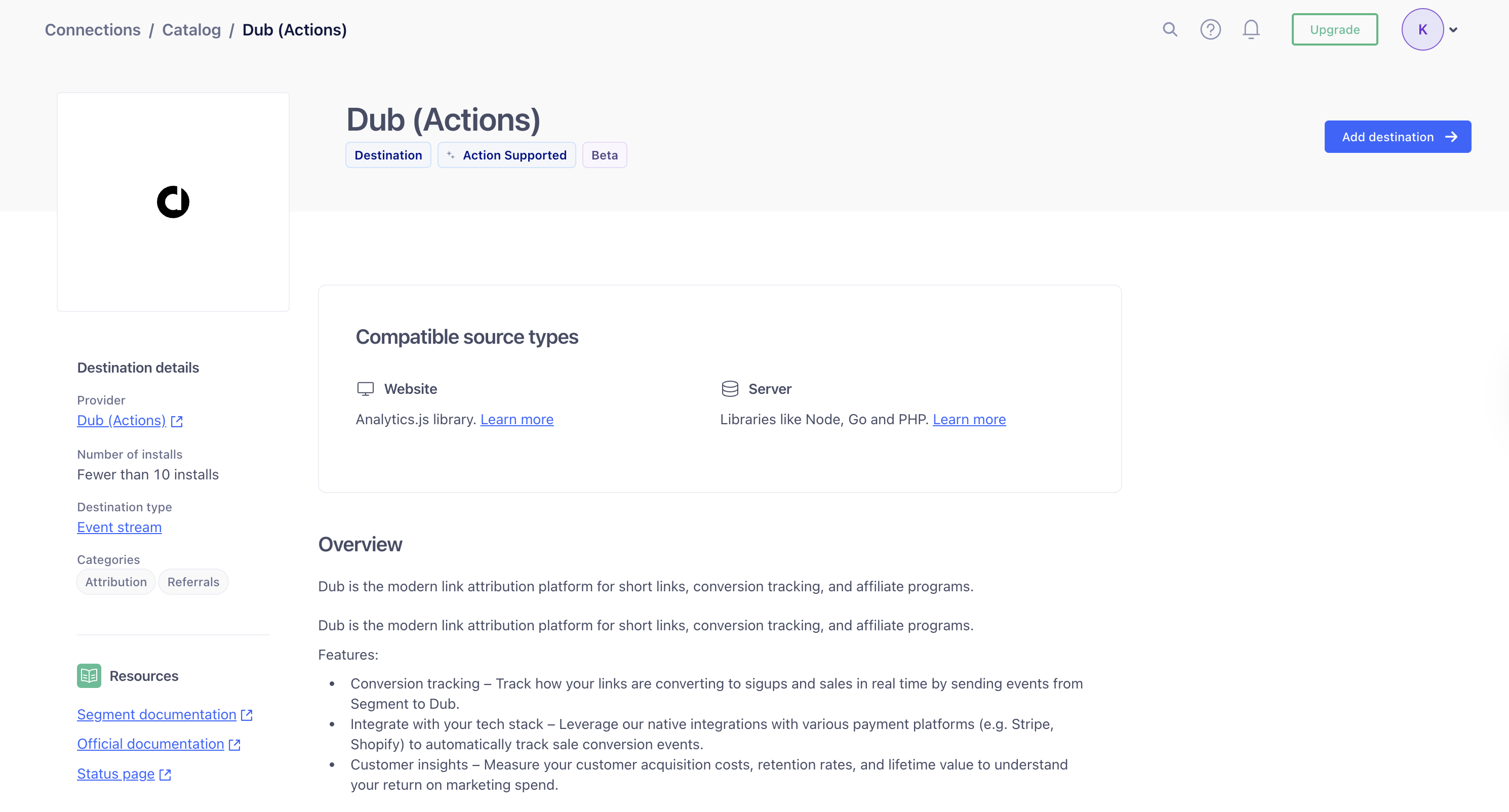
Next, configure [Segment Dub (Actions)](https://app.segment.com/goto-my-workspace/destinations/catalog/actions-dub) to track lead conversion events.
Head to [Segment Dub (Actions)](https://app.segment.com/goto-my-workspace/destinations/catalog/actions-dub) and add the destination to your Segment workspace.
In this guide, we will be focusing on tracking new user sign-ups for a SaaS application that uses Segment to track conversions.
## Prerequisites
Before you get started, make sure you follow the [Dub Conversions quickstart guide](/conversions/quickstart) to get Dub Conversions set up for your links:
1. [Enable conversion tracking for your links](/conversions/quickstart#step-1%3A-enable-conversion-tracking-for-your-links)
2. [Install the @dub/analytics client-side SDK](/sdks/client-side/introduction)
## Configure Segment Action
Next, configure [Segment Dub (Actions)](https://app.segment.com/goto-my-workspace/destinations/catalog/actions-dub) to track lead conversion events.
Head to [Segment Dub (Actions)](https://app.segment.com/goto-my-workspace/destinations/catalog/actions-dub) and add the destination to your Segment workspace.
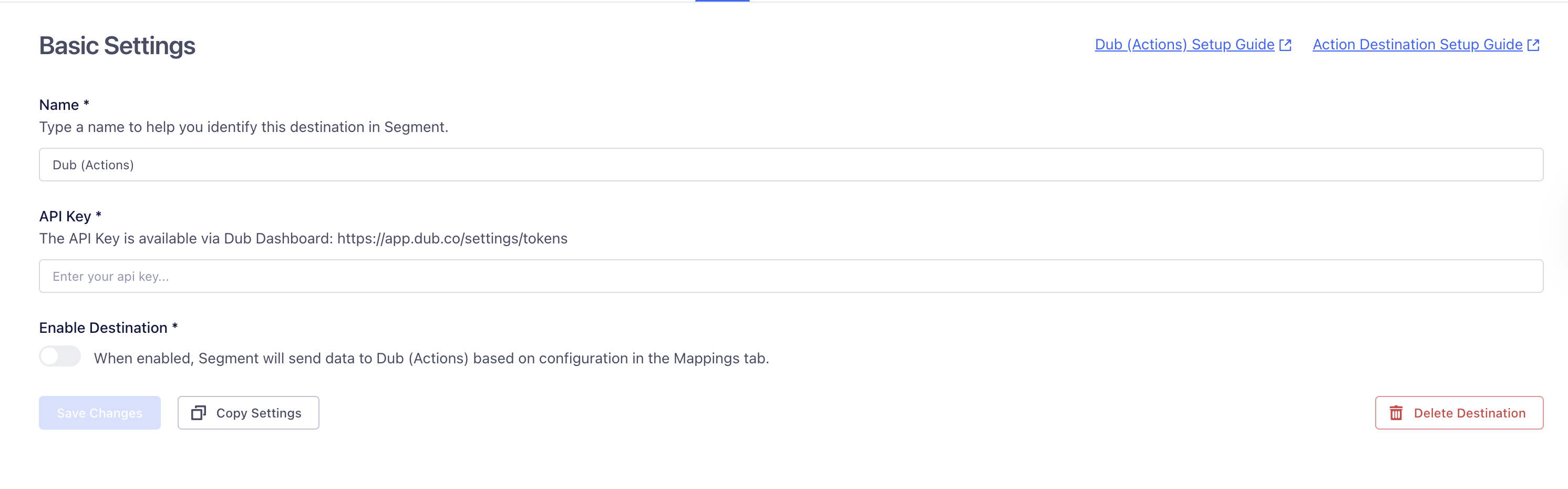
 In the Dub (Actions) destination settings, fill out the following fields:
* **Name:** Enter a name to help you identify this destination in Segment.
* **API Key:** Enter your Dub API key. You can find this in the [Dub Dashboard](https://app.dub.co/settings/tokens).
* **Enable Destination:** Toggle this on to allow Segment to send data to Dub.
Once completed, click **Save Changes**.
In the Dub (Actions) destination settings, fill out the following fields:
* **Name:** Enter a name to help you identify this destination in Segment.
* **API Key:** Enter your Dub API key. You can find this in the [Dub Dashboard](https://app.dub.co/settings/tokens).
* **Enable Destination:** Toggle this on to allow Segment to send data to Dub.
Once completed, click **Save Changes**.
 Next, you’ll choose the **Track a lead** action from the list of available actions.
By default, this action is configured to send lead data to Dub when the **Event Name** is **Sign Up**.
Next, you’ll choose the **Track a lead** action from the list of available actions.
By default, this action is configured to send lead data to Dub when the **Event Name** is **Sign Up**.
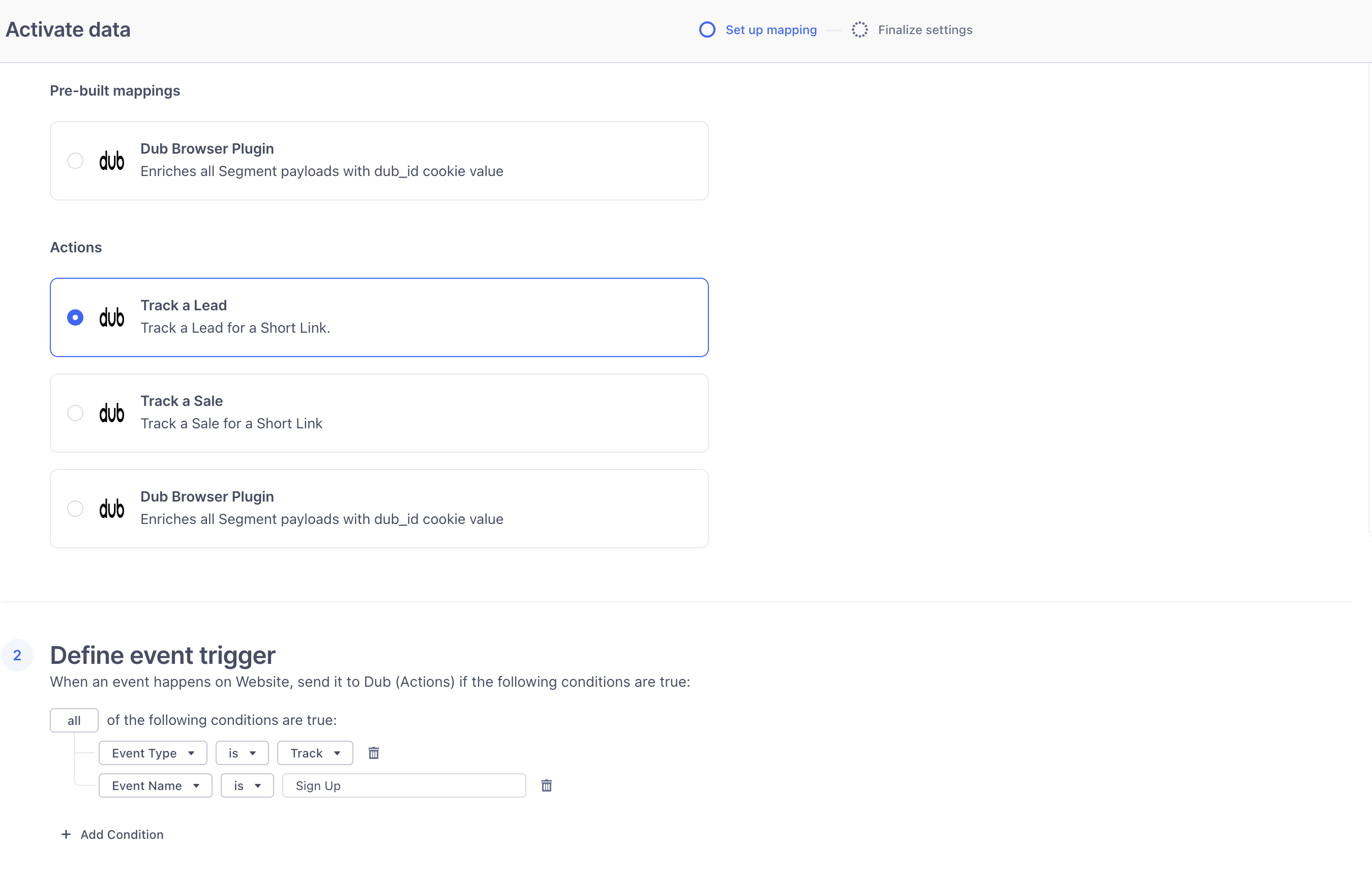 Below the selected action, you’ll see the mapping for that action.
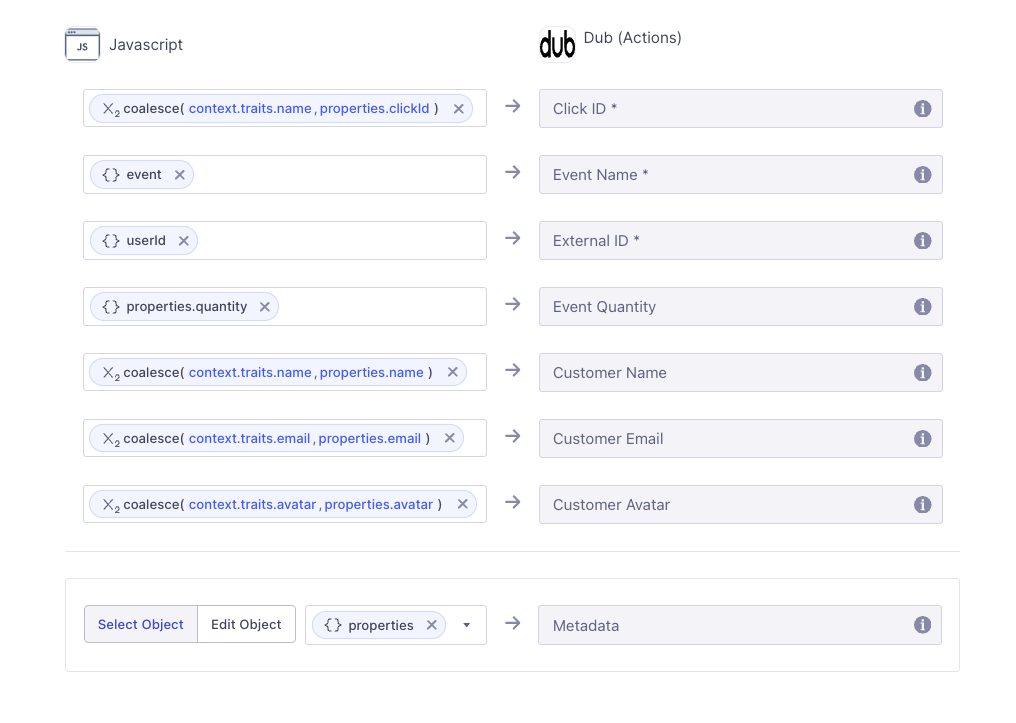 You can customize the trigger and mapping to fit the specific needs of your application.
Finally, click **Next** and then **Save and enable** to add the mapping to the destination.
On the server side, you’ll use the `@segment/analytics-node` SDK to send lead events to Segment.
Make sure to include relevant user traits such as `name`, `email`, and `clickId` in the payload.
You’ll also need to ensure that the `clickId` field is properly mapped in your Segment Actions destination so that it’s forwarded correctly to Dub.
```tsx
import { Analytics } from "@segment/analytics-node";
const segment = new Analytics({
writeKey: "",
});
const cookieStore = await cookies();
const clickId = cookieStore.get("dub_id")?.value;
segment.track({
userId: id,
event: "Sign Up",
context: {
traits: {
name,
email,
avatar,
clickId,
},
},
integrations: {
All: true,
},
});
```
Once the event is tracked, Segment will forward the lead data to Dub based on the mappings you’ve configured.
Here's the full list of attributes you can pass when sending a lead event:
| Property | Required | Description |
| :------------------- | :------- | :----------------------------------------------------------------------------------------------------------------------- |
| `clickId` | **Yes** | The unique `dub_id` parameter that the lead conversion event is attributed to. |
| `eventName` | **Yes** | The name of the event. Example: "Sign up". |
| `customerExternalId` | **Yes** | The unique ID of the customer in your system. Will be used to identify and attribute all future events to this customer. |
| `customerEmail` | No | The email address of the customer. If not passed, a random email address will be generated. |
| `customerName` | No | The name of the customer. If not passed, a random name will be generated (e.g. "Big Red Caribou"). |
| `customerAvatar` | No | The avatar URL of the customer. If not passed, a random avatar URL will be generated. |
## Example App
To learn more about how to track leads with Segment, check out the following example app:
Next.js app using Segment to track new user sign-ups.
## View your conversions
Once you've completed the setup, all your tracked conversions will show up in [Dub Analytics](https://dub.co/analytics). We provide 3 different views to help you understand your conversions:
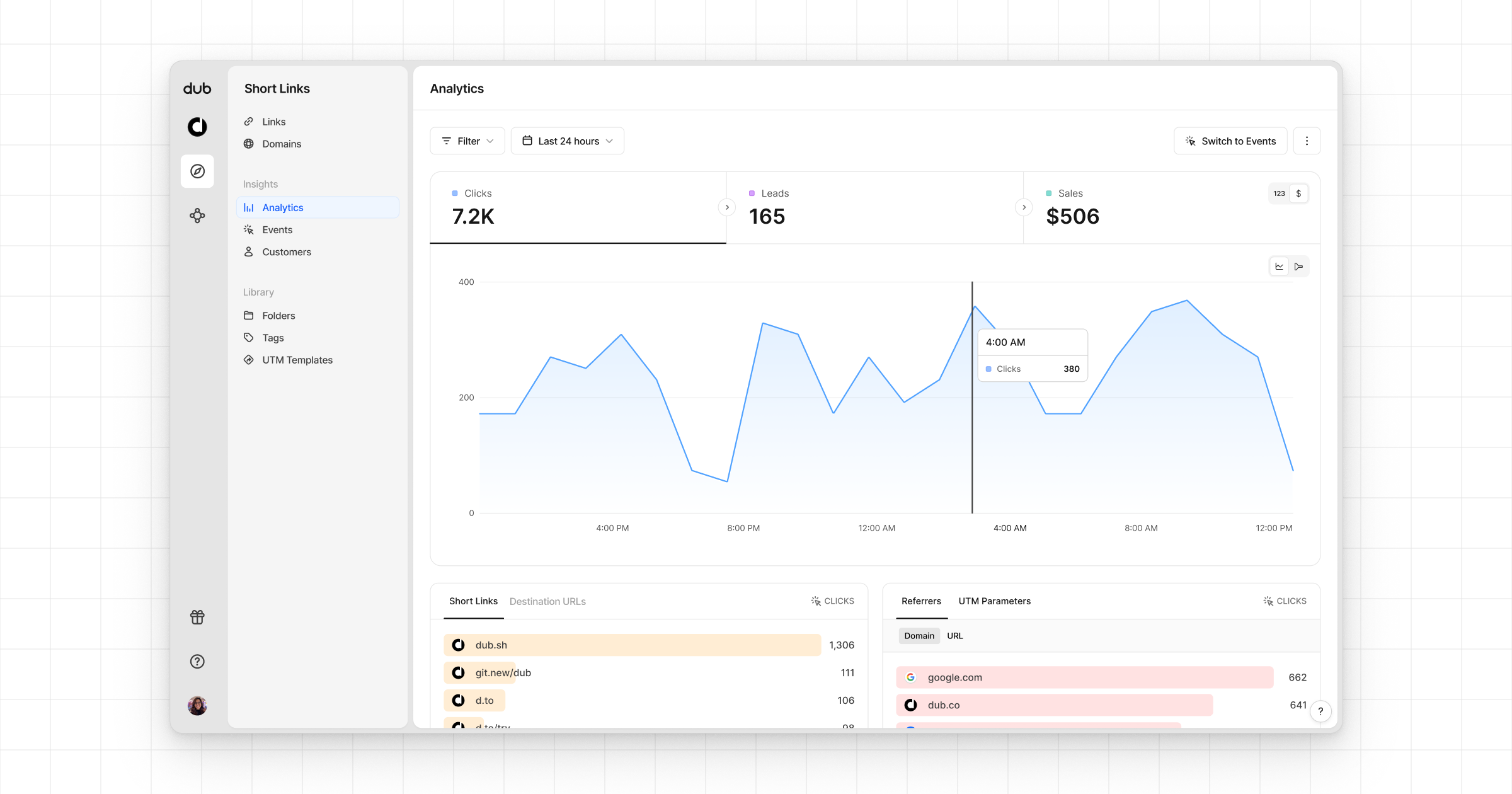
* **Time-series**: A [time-series view](https://app.dub.co/dub/analytics?view=timeseries) of the number clicks, leads and sales.
You can customize the trigger and mapping to fit the specific needs of your application.
Finally, click **Next** and then **Save and enable** to add the mapping to the destination.
On the server side, you’ll use the `@segment/analytics-node` SDK to send lead events to Segment.
Make sure to include relevant user traits such as `name`, `email`, and `clickId` in the payload.
You’ll also need to ensure that the `clickId` field is properly mapped in your Segment Actions destination so that it’s forwarded correctly to Dub.
```tsx
import { Analytics } from "@segment/analytics-node";
const segment = new Analytics({
writeKey: "",
});
const cookieStore = await cookies();
const clickId = cookieStore.get("dub_id")?.value;
segment.track({
userId: id,
event: "Sign Up",
context: {
traits: {
name,
email,
avatar,
clickId,
},
},
integrations: {
All: true,
},
});
```
Once the event is tracked, Segment will forward the lead data to Dub based on the mappings you’ve configured.
Here's the full list of attributes you can pass when sending a lead event:
| Property | Required | Description |
| :------------------- | :------- | :----------------------------------------------------------------------------------------------------------------------- |
| `clickId` | **Yes** | The unique `dub_id` parameter that the lead conversion event is attributed to. |
| `eventName` | **Yes** | The name of the event. Example: "Sign up". |
| `customerExternalId` | **Yes** | The unique ID of the customer in your system. Will be used to identify and attribute all future events to this customer. |
| `customerEmail` | No | The email address of the customer. If not passed, a random email address will be generated. |
| `customerName` | No | The name of the customer. If not passed, a random name will be generated (e.g. "Big Red Caribou"). |
| `customerAvatar` | No | The avatar URL of the customer. If not passed, a random avatar URL will be generated. |
## Example App
To learn more about how to track leads with Segment, check out the following example app:
Next.js app using Segment to track new user sign-ups.
## View your conversions
Once you've completed the setup, all your tracked conversions will show up in [Dub Analytics](https://dub.co/analytics). We provide 3 different views to help you understand your conversions:
* **Time-series**: A [time-series view](https://app.dub.co/dub/analytics?view=timeseries) of the number clicks, leads and sales.
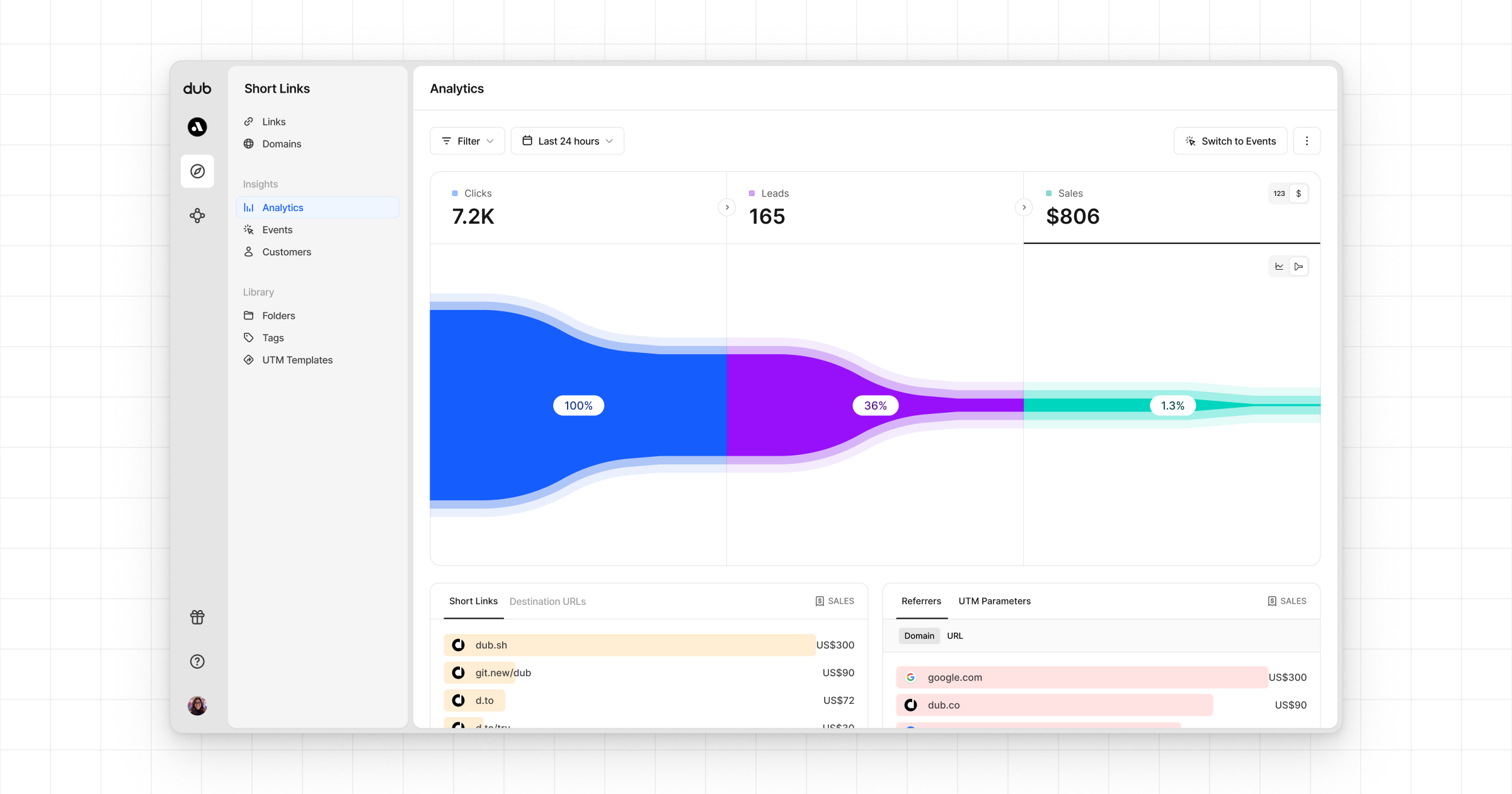
 * **Funnel chart**: A [funnel chart view](http://app.dub.co/analytics?view=funnel) visualizing the conversion & dropoff rates across the different steps in the conversion funnel (clicks → leads → sales).
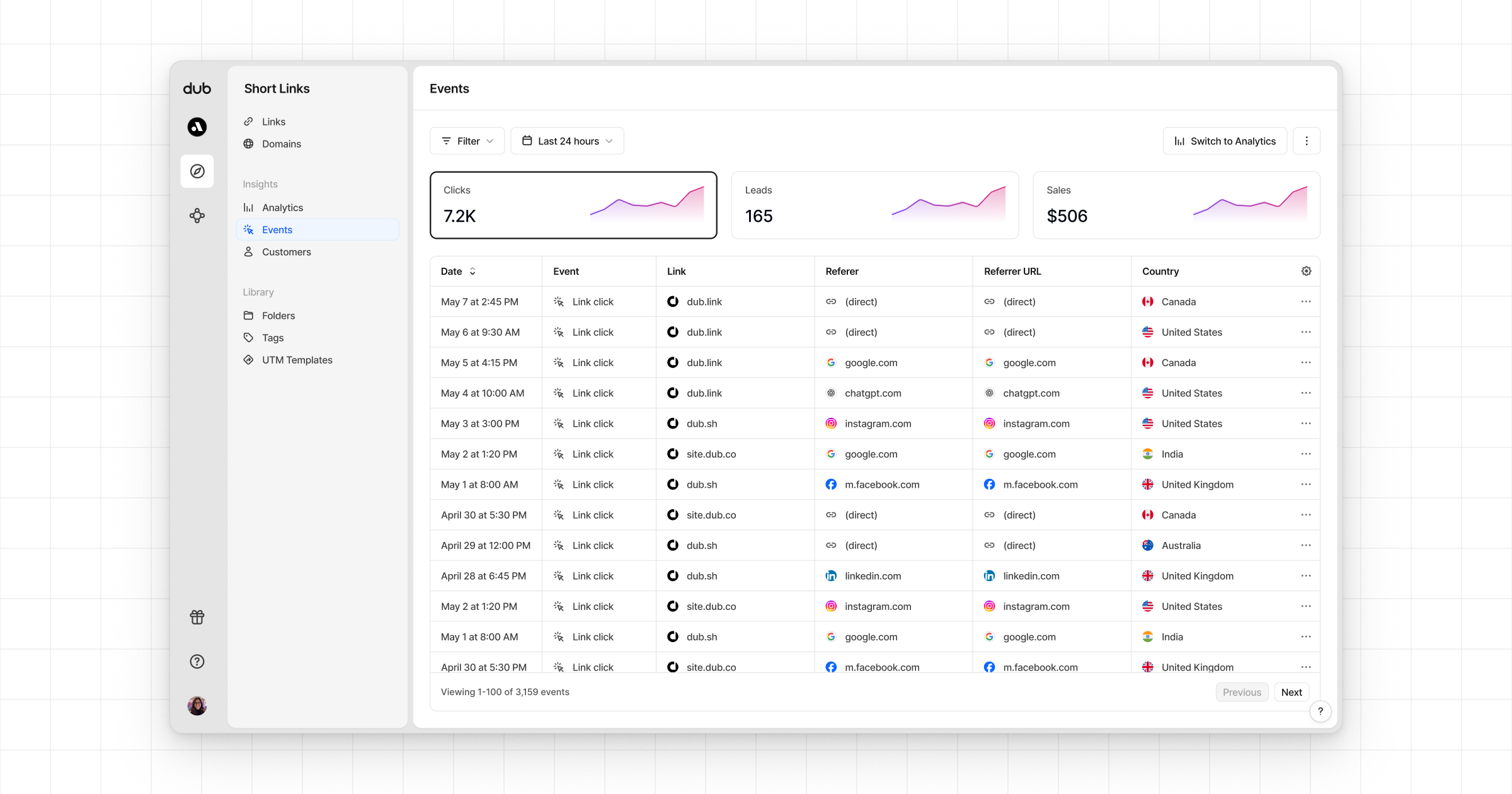
 * **Real-time events stream**: A [real-time events stream](https://app.dub.co/events) of every single conversion event that occurs across all your links in your workspace.